If your Lenovo keyboard light suddenly stops working, it can be annoying—especially if you often type in low-light environments. Many Lenovo laptops have backlit keyboards, but sometimes the light does not turn on, or it stops working without warning. This problem can affect productivity, comfort, and even the health of your eyes when using your laptop for long hours.
While it might seem like a small issue, a non-working keyboard light can be a sign of bigger problems or just a simple setting change. Understanding why this happens and how to fix it is important for anyone who uses a Lenovo laptop.
This article explores all possible reasons for a Lenovo keyboard light not working, practical fixes you can try yourself, and tips to prevent this issue in the future. Whether you are a student, professional, or casual user, you will find clear explanations and step-by-step solutions.
By the end, you will know how to get your keyboard light back—without needing a trip to the repair shop.
How Lenovo Keyboard Lights Work
Before fixing the issue, it helps to understand how Lenovo keyboard lights actually function. Most Lenovo laptops with backlit keyboards use small LED lights placed under each key. When you turn on the backlight, these LEDs light up the keyboard, making the keys visible in dark rooms.
Lenovo uses different methods to control the keyboard light, depending on the model:
- Function keys: The most common way. Usually, you press Fn + Spacebar to turn the light on or off, or to adjust brightness levels.
- Lenovo Vantage software: Some newer models use Lenovo’s own software for controlling the keyboard light.
- BIOS/UEFI settings: In rare cases, the keyboard backlight can be controlled from the laptop’s BIOS menu.
If the keyboard light does not work, it can be due to hardware, software, or even user error. Understanding which method your laptop uses is the first step to solving the problem.
Common Lenovo Models With Keyboard Light
Here’s a quick comparison of popular Lenovo models and their keyboard backlight features:
| Model Series | Backlit Keyboard | Activation Shortcut | Brightness Levels |
|---|---|---|---|
| ThinkPad X1 Carbon | Yes | Fn + Spacebar | 2-3 |
| Yoga Series (e.g., Yoga 7i) | Yes | Fn + Spacebar | 2 |
| Legion Gaming Laptops | Yes (RGB) | Lenovo Vantage | Multiple (customizable) |
| IdeaPad 3/5/7 | Often (check specs) | Fn + Spacebar | 1-2 |
| ThinkBook Series | Yes | Fn + Spacebar | 2 |
Not all Lenovo laptops have a backlit keyboard. Always check your laptop’s specifications to confirm.
Reasons Why Lenovo Keyboard Light Stops Working
A Lenovo keyboard light can stop working for many reasons. The problem may be simple—like accidentally turning off the backlight—or more complex, such as hardware failure. Here are the main causes to consider:
1. Backlight Is Turned Off
The most frequent reason is that the keyboard backlight is simply switched off. Accidentally pressing the wrong key combination can turn the light off. Sometimes, the system disables the backlight after a restart or update.
2. Wrong Key Combination
Some users may use the wrong shortcut. While Fn + Spacebar works on most Lenovo models, a few use other combinations. If you use an external keyboard, it may have its own shortcut.
3. Keyboard Backlight Timeout
Certain Lenovo models have a timeout setting. The backlight automatically turns off after a few seconds of inactivity to save battery. If you do not press any key, the light will go off by itself.
4. Software Or Driver Issues
A corrupted or outdated keyboard driver can cause the backlight to stop working. After a Windows update or Lenovo Vantage update, the driver may no longer work correctly.
5. Lenovo Vantage Or Utility Settings
Some Lenovo laptops need the Lenovo Vantage software to control the keyboard light. If Vantage is not installed or is malfunctioning, the backlight may not turn on.
6. Bios Or Uefi Settings
On a few models, the keyboard backlight can be disabled in the BIOS/UEFI. If someone changes this setting, the backlight will not work, no matter what you do in Windows.
7. Hardware Problems
Physical damage to the keyboard or internal connectors can cause the light to fail. Spilled liquids, drops, or manufacturing defects might be the reason.
8. Power Or Battery Issues
When the laptop battery is low or in “Battery Saver” mode, the system may disable the backlight to conserve power.
9. System Or Windows Update Bugs
A recent Windows update or system change can break compatibility with keyboard drivers or Lenovo utility software.
10. Not All Models Have Backlight
Surprisingly, some users expect a backlit keyboard even though their Lenovo model does not support it. Always check the specs before troubleshooting.

Credit: www.reddit.com
How To Check If Your Lenovo Keyboard Has A Backlight
Before you start fixing, make sure your laptop actually has a backlit keyboard. Here’s how you can check:
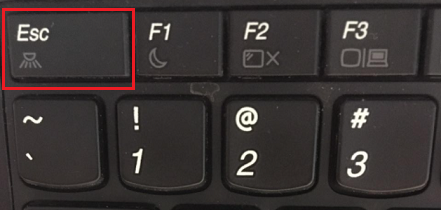
- Look for the symbol: Most Lenovo backlit keyboards have a small light or icon (like a glowing keyboard) on the spacebar.
- Search the specs: Visit the official Lenovo support site and enter your laptop’s serial number to see if it is listed.
- Check your laptop’s manual: The manual usually mentions if a keyboard backlight is present.
- Try the shortcut: Press Fn + Spacebar and see if anything happens. If there is no response and no symbol, your keyboard may not have a light.
If your laptop does not have a backlight, no software fix will turn it on.
Step-by-step Fixes For Lenovo Keyboard Light Not Working
If you confirm your Lenovo laptop should have a backlit keyboard, follow these steps to fix the problem. Most solutions are easy and do not require technical skills.
1. Use The Correct Shortcut Key
- Press Fn + Spacebar once. This usually cycles through “off,” “low brightness,” and “high brightness.”
- On some gaming models, try Fn + F5/F6 or the dedicated backlight key.
Tip: Press the keys firmly and make sure the Fn Lock is not active, as it may change what the keys do.
2. Change Keyboard Backlight Timeout Settings
Some Lenovo laptops allow you to adjust how long the backlight stays on:
- Open Lenovo Vantage or Lenovo Utility (pre-installed software).
- Go to Device > Input & Accessories.
- Adjust the “Keyboard Backlight Timeout” setting to your preference.
If you do not see this option, your laptop may not support it.
3. Update Keyboard Drivers
An outdated or damaged keyboard driver can block the backlight. Here’s how to update:
- Right-click the Start button and select Device Manager.
- Find Keyboards > your keyboard device.
- Right-click and choose Update driver.
- Select Search automatically for updated driver software.
Restart your laptop to see if the problem is fixed.
4. Reinstall Lenovo Vantage
Lenovo Vantage helps manage hardware settings, including the keyboard light. If the app is missing or corrupt:
- Uninstall Lenovo Vantage from the Windows Control Panel.
- Download the latest version from the Microsoft Store or Lenovo’s official site.
- Install and open Vantage. Check the “Keyboard Backlight” section.
5. Check Power Settings
Your laptop may disable the backlight to save power. To adjust:
- Open Windows Settings > System > Power & sleep.
- Set to Best performance (not Battery saver).
- Plug in your laptop to AC power and try the backlight keys again.
6. Change Bios/uefi Settings
Some Lenovo laptops let you enable or disable the keyboard light from the BIOS:
- Shut down your laptop.
- Power it on and immediately press F1 or F2 (depending on the model) to enter BIOS/UEFI.
- Look for Keyboard Backlight or Keyboard settings.
- Set to Enabled. Save and exit.
7. Run Hardware Diagnostics
Lenovo laptops come with built-in diagnostics. To test your keyboard hardware:
- Restart the laptop and press F10 or Enter to access diagnostics (check your manual).
- Run the keyboard test. If the backlight does not turn on during testing, hardware repair may be needed.
8. Reset Your Laptop
If none of the above work, try a system reset:
- Save your files.
- Go to Settings > Update & Security > Recovery.
- Click Reset this PC and follow instructions.
This will reinstall Windows and fix most software errors.
9. Check For Physical Damage
If you have spilled anything on your keyboard, dropped the laptop, or notice keys not working, the backlight cable may be damaged. Sometimes, only a professional repair can fix this.
10. Contact Lenovo Support
If all else fails, reach out to Lenovo Support. They can check your warranty status and offer repair options.
Real-world Troubleshooting Examples
To help you understand what works, here are a few real-world examples.
Example 1: After Windows Update, Backlight Gone
A ThinkPad X1 Carbon user reports the keyboard light stopped working after a major Windows update. The problem was solved by reinstalling the keyboard driver and updating Lenovo Vantage.
Example 2: Backlight Only Works When Plugged In
An IdeaPad user finds that the backlight works only when the laptop is charging. Adjusting the power settings and disabling Battery Saver mode fixed the issue.
Example 3: Shortcut Not Working
A Yoga user presses Fn + Spacebar and nothing happens. After checking the BIOS, they discover the backlight was disabled there. Re-enabling it solved the problem.
These examples show that the solution often depends on the exact cause.
Comparing Lenovo Keyboard Light Issues With Other Brands
It is helpful to see how Lenovo’s keyboard backlight problems compare to other popular laptop brands.
| Brand | Common Shortcut | Software Control | Frequent Issues |
|---|---|---|---|
| Lenovo | Fn + Spacebar | Lenovo Vantage | Driver, BIOS, timeout |
| Dell | F5 or Fn + F10 | Dell Quickset | Driver, BIOS, battery |
| HP | F5 or Fn + F5 | HP Command Center | Driver, hardware |
| Asus | Fn + F4/F3 | Armoury Crate | Driver, shortcut |
| Acer | Fn + F9 | Acer Quick Access | Model support |
Lenovo’s main difference is the reliance on Lenovo Vantage and the Fn + Spacebar shortcut. Compared to other brands, driver and BIOS issues are just as common.
Advanced Troubleshooting And Tips
If the basic fixes do not solve your Lenovo keyboard light issue, here are some advanced tips for tech-savvy users.
Update All System Drivers
Using Lenovo System Update or Lenovo Vantage, update all critical drivers—not just the keyboard. Sometimes, a chipset or power management driver can affect the backlight.
Roll Back Problematic Updates
If the problem started after a Windows or driver update, try rolling back to the previous version:
- Open Device Manager
- Right-click the keyboard device
- Select Properties > Driver > Roll Back Driver
Clean Keyboard Contacts
For users comfortable with hardware, cleaning the keyboard contacts can help. Dust or debris inside the laptop can prevent the backlight from working. This should only be done if you are experienced or by a technician.
Check For Hidden Software
Some laptops have extra utility programs running in the background that control hardware. Disable unnecessary startup programs to see if the backlight returns.
Bios/uefi Firmware Update
A BIOS update can fix bugs related to hardware functions. Visit Lenovo’s official support site, download the latest BIOS for your model, and follow instructions carefully.
Warning: Updating BIOS incorrectly can harm your laptop. Always read all instructions.
Preventing Future Keyboard Light Problems
Fixing the problem is important, but preventing it in the future saves time and effort. Here are some practical steps:
- Install updates carefully: Only install official Lenovo and Windows updates. Avoid third-party driver tools.
- Keep Lenovo Vantage updated: This tool manages many hardware features.
- Do not eat or drink near your laptop: Spills can damage the keyboard.
- Use gentle cleaning methods: Avoid harsh chemicals on the keyboard.
- Avoid forceful key presses: This can damage both the keys and the backlight wiring.
- Monitor battery health: Replace old batteries that can cause power issues.
Non-obvious tip: Sometimes, using a laptop cooling pad can help, as overheating affects internal circuits and may impact keyboard backlight function.
When To Seek Professional Help
If you have tried all troubleshooting steps and your Lenovo keyboard light still does not work, it is time to call a professional. Signs that you need expert help include:
- No keyboard keys work at all.
- The laptop gets unusually hot.
- You see flickering or partial backlight (some keys light up, others do not).
- You notice a burning smell or visible damage.
Professional technicians have the tools to test hardware connections, replace faulty parts, and update firmware safely. Trying to repair physical components yourself may void your warranty.
Data And Trends: Keyboard Backlight Issues
Statistics show that keyboard backlight issues are among the top 10 most common hardware complaints for laptop users worldwide. According to a 2022 survey by Laptop Mag, nearly 18% of Lenovo users reported a keyboard backlight problem at least once in their laptop’s lifespan.
Why Is This Issue So Common?
- Increased use in low-light settings (remote work, travel, etc.)
- More models offering backlit keyboards (thus more chances for problems)
- Software updates that sometimes break compatibility
Interestingly, about 60% of reported backlight issues are solved through software fixes, not hardware repair. This means most users can fix the problem themselves without needing to replace the keyboard.
Myths About Lenovo Keyboard Lights
There are several myths about how Lenovo keyboard lights work and why they stop working. Let’s clear up some of the most common:
- Myth: If the backlight does not work, the keyboard is broken.
- Reality: Most backlight problems are software-related.
- Myth: Only gaming laptops have backlit keyboards.
- Reality: Many business and mid-range Lenovo laptops include this feature.
- Myth: You can add a backlight to any Lenovo keyboard.
- Reality: If your keyboard does not support it, it cannot be added by software.
- Myth: All Lenovo laptops use the same shortcut.
- Reality: Most use Fn + Spacebar, but check your manual for exceptions.
Knowing these facts can help you avoid wasted time and frustration.
Essential Do’s And Don’ts
To keep your Lenovo keyboard light working smoothly, follow these do’s and don’ts:
Do:
- Check your laptop’s specs before troubleshooting.
- Use official Lenovo support tools.
- Update drivers and BIOS as recommended.
- Keep your system clean and dry.
Don’t:
- Use third-party driver update tools.
- Force the keys or try to open the keyboard without skill.
- Ignore signs of hardware failure (like flickering or partial lights).
- Assume the backlight can be fixed by software if the keyboard lacks the feature.

Credit: www.youtube.com
How To Use Lenovo Vantage For Keyboard Light Control
Lenovo Vantage is a key tool for managing your laptop’s hardware features, including the keyboard backlight. Here is how to use it:
- Open Lenovo Vantage from your Start menu.
- Go to the Device section and select Input & Accessories.
- Look for Keyboard Backlight settings.
- Adjust the brightness or timeout as needed.
If you do not see the option, your model may not support software control, or you may need to update Vantage.
Table: Quick Fixes And Their Effectiveness
Here’s a summary table of the most common fixes and how effective they are, based on user reports.
| Fix | Success Rate (Approx.) | When to Try |
|---|---|---|
| Shortcut Keys (Fn + Spacebar) | 40% | Light is suddenly off |
| Update/Reinstall Drivers | 30% | After updates, new issues |
| Lenovo Vantage Settings | 20% | Timeout or software control |
| BIOS/UEFI Settings | 5% | Advanced models, no light at all |
| Hardware Repair | 5% | Physical damage, no fix by software |
Trying these fixes in order is usually the best approach.
Non-obvious Insights For Lenovo Keyboard Light Issues
1. Check for conflicting software: Sometimes third-party utilities (like RGB control apps or external keyboard software) can interfere with the Lenovo keyboard backlight. Uninstalling or disabling these can solve hidden conflicts.
2. Ambient light sensors: Some high-end Lenovo models use an ambient light sensor to control the backlight automatically. If this sensor is blocked (by a sticker or your hand), the keyboard light may not turn on. Check for small sensors near the webcam or screen bezel.
Trusted Resources
For more detailed technical help, you can visit the official Lenovo Support page. This site has up-to-date guides, firmware updates, and community forums with answers from Lenovo engineers.
Credit: support.lenovo.com
Frequently Asked Questions
Why Does My Lenovo Keyboard Light Keep Turning Off Automatically?
This is usually due to a timeout setting. The keyboard backlight is set to turn off after a period of inactivity to save battery. You can adjust this setting in Lenovo Vantage or your laptop’s BIOS if your model supports it.
Can I Turn On The Keyboard Light If My Lenovo Model Does Not Have The Feature?
No, you cannot enable a keyboard backlight on a Lenovo laptop that does not physically include the feature. Software cannot add hardware that does not exist. Always check your laptop’s specs before troubleshooting.
My Keyboard Backlight Works On Battery But Not When Plugged In. Why?
This is uncommon but can happen if your power settings are set to prioritize different modes for AC and battery. Check your Windows power plan and Lenovo Vantage settings. Sometimes a faulty charger or power supply can also cause this issue.
The Backlight Flickers Or Only Some Keys Light Up. What Should I Do?
This usually means a hardware problem—such as a loose cable, partial liquid damage, or a failing LED. Basic software fixes may not help. It is best to contact Lenovo Support for professional repair.
How Do I Know If My Lenovo Keyboard Light Issue Is A Hardware Or Software Problem?
If the backlight stopped working after a software update, it is likely a software issue. If you see physical damage, flickering, or the problem persists after reinstalling drivers and resetting BIOS, it is probably hardware-related.
Fixing a Lenovo keyboard light can be simple or complex, depending on the cause. By following the steps in this guide, most users can solve the problem themselves. If the issue continues, do not hesitate to get professional help. With a bit of patience and the right approach, your Lenovo keyboard light will shine again.