When Discord, a tool millions use to chat, organize, and game together, suddenly stops working, it can turn a normal day upside down. You might miss important meetings, lose touch with friends, or get cut off from your favorite gaming group. The frustration is real—especially when error messages offer little help and online searches show too many confusing fixes. This guide will walk you through the most common reasons why the Discord app is not working, how to solve these issues step by step, and what you can do to prevent them in the future. Along the way, you’ll find real examples, practical advice, and insider tips that most new users miss.
Why Discord Might Not Work: The Big Picture
Many think Discord is just a simple chat app, but it’s a complex platform that connects your device to servers across the globe. When something goes wrong, the cause could be on your side, Discord’s side, or somewhere in between. Here are the main categories of problems:
- Internet connection issues
- App bugs or corrupted files
- Device compatibility (PC, Mac, Android, iOS)
- Server outages
- Account problems
- Firewall or security settings
- Software conflicts (with other apps)
Understanding these main causes helps you troubleshoot smarter, not harder.
Two Insights Beginners Miss
- Restarting is powerful: Many ignore this step, but a simple restart of the app or device often clears temporary glitches.
- Device permissions matter: On phones especially, if Discord can’t access your microphone or camera, parts of the app may seem “broken.”
Checking Discord’s Server Status
Before changing anything on your device, check if Discord’s servers are having problems. If the issue is on their end, nothing you do locally will fix it.
How To Check Discord’s Server Status
Go to the official status page: [https://discordstatus.com/](https://discordstatus.com/). Here you’ll see:
- Real-time status for chat, voice, and media services
- Past incidents and outages
- Expected maintenance
If there’s a major outage, you must wait until Discord fixes it. During big updates, users worldwide can have issues for several hours.
Recognizing Server-side Problems
Common signs include:
- You can’t log in on any device
- Friends in other locations have the same problem
- All features are down (not just one)
If only your device is affected, move on to the next sections.
App Not Opening Or Crashing
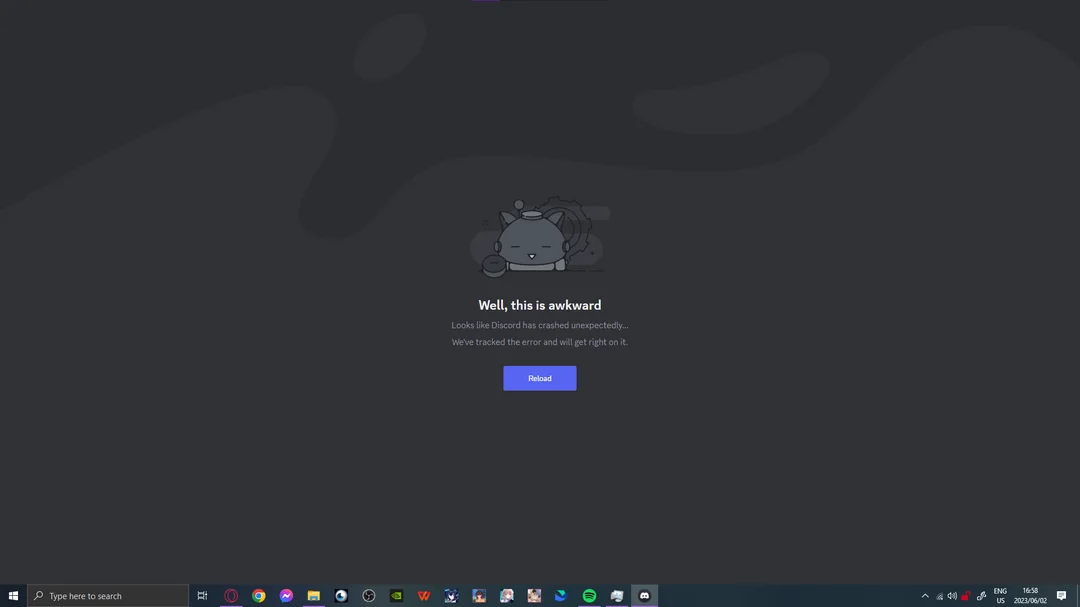
One of the most common issues is Discord refusing to open or crashing right after launch. This can happen on Windows, Mac, Android, and iOS.
Quick Fixes
- Restart your device. This clears temporary bugs and stuck processes.
- Update Discord. Outdated versions often cause crashes.
- Clear cache and data (especially on mobile).
- Check for OS updates.
Platform-specific Solutions
Windows
- Right-click the Discord icon, select Run as administrator.
- If that fails, open Task Manager (Ctrl+Shift+Esc), end all Discord processes, and try again.
- Still broken? Uninstall Discord completely, download the latest version from the official site, and reinstall.
Mac
- Use Force Quit (Command+Option+Esc) to close Discord.
- Delete the app, then download and reinstall.
- Empty the Trash and restart your Mac before reinstalling.
Android & Ios
- Go to Settings > Apps > Discord.
- Tap Force Stop, then Clear Cache and Clear Data.
- Uninstall and reinstall if the problem continues.
Common Mistake
Some users forget to clear both cache and data on mobile. Clearing only the cache may not fix deeper problems.
Login Issues: Can’t Sign In Or Stuck On Loading Screen
Discord sometimes gets stuck at the login phase, either not accepting your password or freezing on the loading animation.
Why It Happens
- Wrong login credentials
- Two-factor authentication (2FA) problems
- Account locked or banned
- Poor internet connection
What To Do
- Check credentials: Make sure there are no typos. Try resetting your password if unsure.
- 2FA: If you’ve lost your 2FA device, use backup codes from Discord’s security settings.
- Check email: Look for any messages about account bans or verifications.
- Try another network: If you’re on Wi-Fi, switch to mobile data (or vice versa).
- Use Discord’s web version: Visit [https://discord.com/app](https://discord.com/app) and try logging in there.
Two-factor Authentication Problems
If 2FA is enabled and you can’t access your authenticator app:
- Use previously saved backup codes.
- If you don’t have them, contact Discord support with proof of account ownership.
Voice And Video Not Working
You may find that text chat works, but you can’t join voice channels or use video. This is a huge problem for meetings, gaming, and social calls.
Main Causes
- Device permissions not granted
- Wrong audio/video device selected
- Firewall or antivirus blocking Discord
- Outdated drivers (PC/Mac)
Steps To Fix
- Check Permissions
- On PC/Mac: Go to system settings > Privacy > Microphone/Camera. Make sure Discord is allowed.
- On Android/iOS: Settings > Apps > Discord > Permissions. Enable Microphone and Camera.
- Select Correct Device
- In Discord, go to User Settings > Voice & Video.
- Choose your microphone and speaker from the dropdown menus.
- Test using the “Let’s Check” button.
- Update Drivers
- On Windows, open Device Manager and update audio/video drivers.
- Mac users should update through the App Store.
- Firewall and Antivirus
- Add Discord to the allowed list in your firewall or antivirus settings.
- Restart Discord after changes.
Hidden Issue: Exclusive Mode (windows)
Some headsets or mics won’t work if another program “locks” them. In Windows:
- Go to Sound Settings > Device Properties > Advanced.
- Uncheck “Allow applications to take exclusive control.”
Discord Not Connecting Or Stuck On “connecting”
This problem usually means Discord can’t reach its servers. You might see a spinning wheel or “Connecting” message that never finishes.
Top Causes
- Weak or unstable internet
- Router or firewall blocking Discord
- VPN or proxy interference
Solutions
- Restart your router. Wait 30 seconds before turning it back on.
- Disable VPN or Proxy. Discord may block connections from some VPNs or proxies.
- Check Firewall. Make sure Discord is allowed (especially on school/work networks).
- Try a different network. For example, connect to mobile hotspot.
- Flush DNS cache (Windows):
- Open Command Prompt as admin.
- Type: `ipconfig /flushdns` and press Enter.
Data Table: Discord Connection Errors And Fixes
Here’s a quick comparison of the most common connection errors and what solves them.
| Error Message | Likely Cause | Best Fix |
|---|---|---|
| Stuck on Connecting | Network/Firewall | Restart router, check firewall |
| No Route | VPN/Proxy | Disable VPN or proxy |
| RTC Connecting | Discord Server/ISP | Try a different network |
| Update Failed | Antivirus, Disk Space | Disable antivirus, free disk space |
Pro Insight
Some schools and workplaces block Discord. If you’re using a managed network, try using a mobile connection or ask your IT department if Discord is allowed.

Credit: www.reddit.com
Notifications Not Working
Missing alerts can mean you don’t see important messages or calls.
Main Reasons
- System notifications are disabled
- Discord’s notification settings are off
- “Do Not Disturb” mode is enabled in Discord
How To Fix
- Check system settings: Make sure notifications are enabled for Discord.
- In Discord: Go to User Settings > Notifications. Adjust settings for desktop and mobile.
- Check server settings: Some servers mute notifications by default.
- Disable Do Not Disturb: If your status is set to “Do Not Disturb,” you won’t get alerts.
Example
On Windows, right-click the speaker icon > Open Notification settings > Make sure Discord is turned on.
Discord Won’t Update Or Install
Updating is key for security and new features. But sometimes, Discord gets stuck during an update or won’t install at all.
Reasons
- Corrupted update files
- Not enough disk space
- Antivirus blocking installation
Fixes
- Delete old update files:
- On Windows: Press Win+R, type `%appdata%`, press Enter. Delete the “Discord” folder.
- Free up disk space.
- Temporarily disable antivirus during installation.
- Run as administrator when installing.
- Try the web version if nothing works: [https://discord.com/app](https://discord.com/app)
Audio Issues: Can’t Hear Or Be Heard
Audio issues are especially frustrating in voice chats and meetings.
Root Causes
- Wrong input/output device selected
- Muted microphone or headphones
- Outdated drivers
Steps To Diagnose
- Check the device selection in Discord.
- Make sure your mic isn’t muted (both in Discord and on your headset).
- Test your hardware on another app (like Zoom or Skype).
- Update audio drivers if you’re on PC or Mac.
Pro Tip
Some headsets have physical mute buttons. Always check these first.
Mobile App Not Working
The Discord mobile app can have unique problems, like not loading messages, crashing, or failing to send notifications.
Key Troubleshooting Steps
- Restart your phone.
- Check for app updates in the App Store or Google Play.
- Clear cache and data (Settings > Apps > Discord).
- Reinstall the app.
- Check battery optimization settings: Some phones restrict background activity for Discord.
Battery Saver Issue
On Android, if battery saver is on, Discord may not work in the background—so notifications and calls may not come through.
Credit: appuals.com
Web Browser Version Problems
If the desktop app fails, the web version can be a useful backup. But it comes with its own set of issues.
Common Web Problems
- Stuck at login
- No sound in voice channels
- Can’t share screen
Solutions
- Try a different browser (Chrome, Firefox, Edge, Safari).
- Clear browser cache and cookies.
- Disable browser extensions that might block Discord (like ad blockers).
- Enable mic and camera permissions in browser settings.
Data Table: Discord Web App Browser Compatibility
Here’s how Discord’s web app performs in different browsers.
| Browser | Voice Support | Screen Share | Known Issues |
|---|---|---|---|
| Google Chrome | Yes | Yes | Fewest issues |
| Mozilla Firefox | Yes | Partial | Screen share limited |
| Safari | No | No | No voice/video |
| Microsoft Edge | Yes | Yes | Occasional crashes |
Advanced Tip
If the web app works but the desktop app does not, your problem is likely with your device, not Discord itself.
Discord Overlay Not Working In Games
The Discord overlay is a popular feature for gamers, letting you see chat and notifications over your game. Sometimes, the overlay won’t appear.
Causes
- Overlay not enabled in settings
- Game not supported
- Graphics drivers out of date
How To Enable And Troubleshoot
- Go to User Settings > Game Overlay. Turn on “Enable in-game overlay.”
- Add your game in “Registered Games.”
- Update graphics drivers.
- Run both Discord and your game as administrator.
Overlay Compatibility Table
Some games and platforms work better with the Discord overlay than others.
| Platform | Overlay Support | Notes |
|---|---|---|
| Windows PC (most games) | Yes | Best experience |
| Mac | No | Overlay not supported |
| Full-screen games | Partial | Try windowed/borderless mode |
| Browser games | No | Overlay not available |
Security, Account, And Verification Issues
Sometimes Discord blocks access for security reasons. You may be asked to verify your email or phone, or find your account locked.
Causes
- Suspicious activity
- Using third-party bots or scripts
- Breaking Discord’s terms of service
- Multiple failed logins
What To Do
- Check your email for messages from Discord.
- Verify your account using the link or code they send.
- Contact Discord Support if you think you were wrongfully banned or locked out.
- Don’t use unofficial plugins or bots.
Insider Insight
If you use the same password on multiple sites, your account may be compromised. Always use a unique, strong password.
How To Prevent Discord Problems In The Future
Fixing Discord is good, but preventing problems is even better. Here’s how to keep your app running smoothly:
- Update regularly: Always use the latest version of Discord and your device’s OS.
- Review permissions: Make sure Discord has the access it needs for mic, camera, and notifications.
- Keep drivers up to date: Outdated audio or graphics drivers can cause many problems.
- Avoid sketchy plugins or bots: They can break your account or get you banned.
- Use strong, unique passwords.
- Backup important chats: Export important messages or server info if you rely on Discord for work or study.
When To Contact Discord Support
If you’ve tried everything and Discord is still not working, it’s time to get help from the experts.
- Go to [https: //support.discord.com/](https://support.discord.com/) and submit a request.
- Provide detailed info: Device, operating system, what you’ve tried, and any error messages.
- Attach screenshots if possible.
Discord’s support team is usually quick, but response times may vary during big outages.
Useful External Resource
For the official list of Discord’s features, troubleshooting guides, and known issues, visit the Discord Help Center.
Credit: www.reddit.com
Frequently Asked Questions
Why Is My Discord Stuck On The Connecting Screen?
This usually means there’s a network issue or your firewall is blocking Discord. Restart your router, check your firewall, and make sure you’re not using a VPN or proxy that Discord doesn’t support.
What Should I Do If Discord Won’t Install Or Update?
Try deleting old Discord files from your computer, free up disk space, and temporarily turn off your antivirus. Download the latest installer from Discord’s official site and run it as administrator.
How Do I Fix Discord Audio Problems?
Open Discord’s Voice & Video settings and select the correct microphone and speakers. Check your device’s volume and mute settings. Update your audio drivers, and test your hardware with another app.
Why Aren’t Discord Notifications Showing Up On My Phone?
Check both your phone’s system notification settings and Discord’s in-app notification options. Make sure battery saver mode isn’t limiting Discord, and that your status isn’t set to “Do Not Disturb. ”
Can I Use Discord On A Web Browser If The App Isn’t Working?
Yes, you can log in at [https://discord.com/app](https://discord.com/app) using any major web browser. If you have issues, try clearing your browser’s cache and disabling extensions.
No matter what problem you face, remember that most Discord issues have a solution—and with the right steps, you’ll be back online and chatting in no time.