If you’ve ever tried to check your balance, pay a bill, or transfer money using the Chase app, only to find it’s not working, you’re not alone. The Chase mobile app is one of the most widely used banking apps in the United States, with over 40 million active users. But even the best technology can fail sometimes. When the Chase app stops working, it can be stressful—especially if you need to make a payment or access your money quickly.
This article gives you clear, practical help for when the Chase app is not working. You’ll find common causes, step-by-step solutions, real-world examples, and answers to your most important questions. No technical jargon—just clear advice anyone can follow. By the end, you’ll know what to do, how to avoid problems in the future, and when to get extra help.
Why The Chase App Might Not Work
Smartphone apps can stop working for many reasons, and the Chase app is no different. Understanding the possible causes can help you fix the problem faster.
Common Causes
1. Outdated App Version
Using an old version of the Chase app is a top reason for errors. Developers release updates to fix bugs, improve security, and add features. If you don’t update regularly, the app may not work as expected.
2. Server Issues At Chase
Sometimes, the problem isn’t on your end. Chase’s servers might be down for maintenance or due to unexpected outages. When this happens, the app can’t communicate with the bank.
3. Device Compatibility
If you’re using an older phone or operating system, the Chase app might not support it anymore. This is common when banks update their apps to use newer technology.
4. Internet Connection Problems
A slow or unstable internet connection can stop the app from loading data, making it seem like the app is broken.
5. Corrupted App Data Or Cache
Apps store temporary data (called cache) to load faster. If this data becomes corrupted, the app might crash or freeze.
6. Account Or Security Lockouts
Multiple wrong password attempts or suspicious activity can trigger security locks, stopping you from logging in.
7. Device Settings And Permissions
The app needs access to certain phone features, like the camera for check deposits. If permissions are turned off, parts of the app won’t work.
Data And Statistics
According to a 2023 report from Business Insider, more than 25% of mobile banking users in the US have experienced app outages or errors in the last year. Of those, 60% said the issue was fixed within a few hours, while 15% needed to call customer support.
Step-by-step Solutions When The Chase App Is Not Working
Let’s walk through practical steps you can take to fix the Chase app quickly. These steps work for both iPhone and Android users.
1. Check For Chase Outages
First, make sure the problem isn’t on Chase’s side.
- Visit the official Chase status page or social media accounts to see if there’s a known outage.
- Search “Chase app down” on Google or Twitter for recent reports from other users.
- If Chase is having a widespread issue, you’ll need to wait for them to fix it.
2. Update The App
Many issues are solved by updating to the latest version.
- Go to the App Store (iOS) or Google Play Store (Android).
- Search for “Chase” and tap “Update” if available.
- Restart your phone after updating.
3. Test Your Internet Connection
A poor connection is often the culprit.
- Try loading a website in your browser.
- Switch between Wi-Fi and mobile data to see if one works better.
- Move to a place with a stronger signal.
4. Restart Your Device
This simple step can clear temporary glitches.
- Hold the power button and select “Restart” or “Power Off.”
- Wait a few seconds, then turn your device back on.
5. Clear Cache And App Data
If the app still won’t work, try clearing its cache.
For Android:
- Go to Settings > Apps > Chase > Storage.
- Tap “Clear Cache” and “Clear Data.”
- Reopen the app and log in again.
For iPhone:
- Delete the app.
- Reinstall it from the App Store.
- Log in with your details.
6. Check Device Compatibility
If your phone is older, the app may not support it.
- Open the app page in the App Store or Google Play.
- Check the “Compatibility” section.
- If your device is not supported, consider updating your operating system or using the Chase website.
7. Review App Permissions
The app needs certain permissions to work fully.
- Go to Settings > Apps > Chase > Permissions.
- Make sure permissions like Camera, Storage, and Location are enabled.
8. Reset Your Password Or Unlock Your Account
If you’re locked out, use the “Forgot Password” or “Unlock Account” options on the login screen.
- Follow the on-screen instructions.
- You may need to answer security questions or verify your identity by email or phone.
9. Uninstall And Reinstall The App
If nothing else works, remove the app and install it again. This can fix hidden problems.
10. Contact Chase Support
If all else fails, reach out to Chase customer service.
- Use the “Contact Us” option in the app (if you can open it).
- Call the number on the back of your Chase card.
- Visit a Chase branch for help.
Example: Real-world Troubleshooting Flow
Here’s how a typical troubleshooting process might look:
| Step | Action | Expected Result |
|---|---|---|
| 1 | Check Chase server status | Find out if it’s a widespread outage |
| 2 | Update app from app store | Get latest bug fixes |
| 3 | Test different internet connections | See if network is the issue |
| 4 | Clear cache/data or reinstall app | Remove corrupted files |
| 5 | Contact Chase support | Get personalized help |
How The Chase App Works Behind The Scenes
To understand why the Chase app sometimes fails, it helps to know how it works.
Secure Connection To Chase Servers
Every time you open the app, it connects to Chase’s secure servers. This connection is encrypted to protect your data.
Real-time Data Sync
The app pulls your account information in real time. If the servers are overloaded or your internet is slow, the data won’t load properly.
Device And Security Checks
Chase uses several security layers, such as device fingerprinting and two-factor authentication. If your device fails these checks, you may be locked out until you verify your identity.
Automatic Updates
The app is updated regularly to stay ahead of security threats and provide new features. If you ignore updates, you risk running into bugs.
Example: Common Error Messages
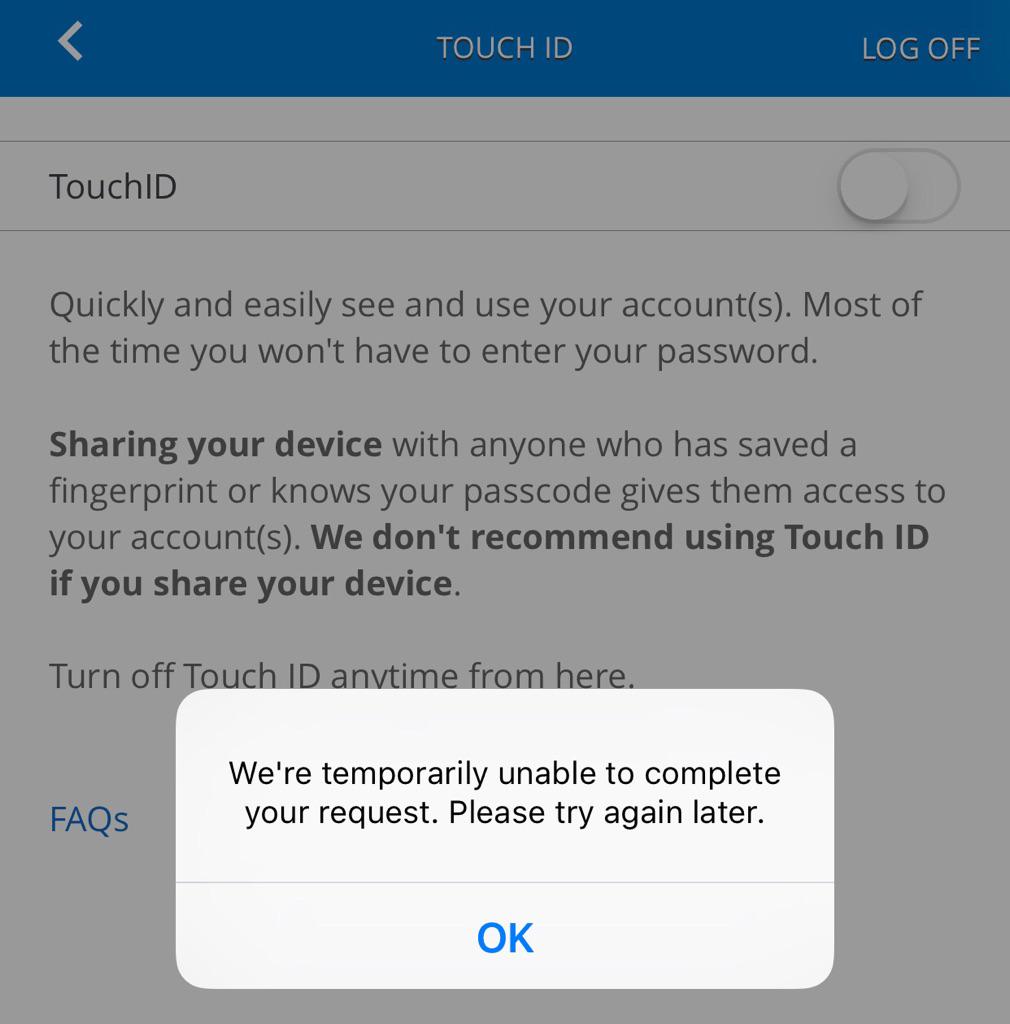
Some typical error messages include:
- “We’re having technical difficulties.”
- “Unable to connect to server.”
- “Your session has expired.”
- “Update required to continue.”
Recognizing these can help you decide which fix to try.
Device-specific Problems And Fixes
Sometimes, the steps above don’t work because the issue is unique to your device. Here are some device-specific tips.
Problems On Iphone (ios)
- Make sure your iOS version is current. Chase often requires the latest iOS for security reasons.
- Double-check “Background App Refresh” is on for the Chase app.
- If Face ID or Touch ID isn’t working, reset your biometric settings and set them up again.
Problems On Android
- Check if your phone’s security settings block unknown sources or restrict background data.
- Some Android phones have aggressive battery-saving features. Make sure the Chase app is allowed to run in the background.
- If you use a custom ROM or rooted device, Chase may block the app for security reasons.
Comparison: Ios Vs Android App Issues
Here’s a quick comparison of the most common problems on each platform.
| Issue | iOS | Android |
|---|---|---|
| Requires latest OS | Frequent | Frequent |
| Biometric login fails | Common | Less common |
| Background restrictions | Rare | Common |
| Rooted/jailbroken device blocked | Possible | Very likely |
Credit: x.com
How To Avoid Problems With The Chase App
A little prevention can save you time and stress. Here’s how to keep the Chase app running smoothly.
1. Keep The App Updated
Set your phone to update apps automatically, so you always get the latest security patches and bug fixes.
2. Regularly Update Your Phone’s Operating System
Major banking apps often require the latest iOS or Android. If you delay these updates, the app may stop working or become less secure.
3. Maintain A Stable Internet Connection
Whenever possible, use Wi-Fi or a strong mobile signal. Avoid using public Wi-Fi for sensitive banking, as it can be less secure.
4. Use Strong Security Practices
- Enable two-factor authentication in the Chase app.
- Don’t share your login information.
- Use unique passwords and change them regularly.
5. Avoid Rooting Or Jailbreaking Your Device
Chase and other banks block access on modified devices for security reasons.
6. Check Permissions After Major Updates
Sometimes, app or system updates reset permissions. Make sure the Chase app still has access to the features it needs.
7. Log Out When Finished
This simple step can help avoid session errors and keep your account safe.
8. Monitor Chase Announcements
Follow Chase on social media or enable app notifications for important updates and outage alerts.
Example: Automatic App Updates
Here’s how to set up automatic updates on your phone:
| Platform | How To Set Automatic Updates |
|---|---|
| iOS | Settings > App Store > App Updates > Turn On |
| Android | Play Store > Settings > Network Preferences > Auto-update apps |
What To Do If You Need To Access Your Money Urgently
If the Chase app is down and you need to pay a bill or transfer funds right away, you have options.
1. Use The Chase Website
The Chase website often works even when the app is down. Go to www. chase. com in your browser and log in with your usual details.
2. Visit A Local Chase Branch Or Atm
If you can’t use digital options, visit your nearest branch. You can also use an ATM for basic transactions.
3. Use Phone Banking
Call Chase customer service for urgent help. The number is on your card or the official website.
4. Try A Different Device
Sometimes, the issue is with your phone. Borrow a trusted device and install the app or use the website.
Non-obvious Insight
Many users don’t realize that Chase debit and credit cards work even if the app is down. As long as your account is in good standing, you can still make purchases and withdrawals.
Credit: www.reddit.com
When To Contact Chase Support
Most issues can be fixed on your own. But there are times when you should contact Chase support directly:
- You see unauthorized transactions in your account.
- You’re locked out and can’t reset your password.
- The app gives you a message about suspicious activity.
- The problem lasts for more than 24 hours, and there’s no outage report.
Chase offers 24/7 support by phone, and help is usually fast for urgent issues.
Security Concerns When The App Doesn’t Work
A non-working app can make you worry about security. Here’s what you need to know.
Is Your Money Safe?
If the app is down, your money is still safe in your Chase account. App outages do not affect your actual funds.
What About Fraud?
If you receive unexpected app errors or messages asking for personal information, be careful. Chase will never ask you to share your password or PIN by email or text.
What To Do If You Suspect Fraud
- Change your password right away.
- Contact Chase support using the number on their official website.
- Review your recent transactions for anything unusual.
Extra Tip
If you get a suspicious email or text about the app, forward it to phishing@chase.com. This helps Chase fight fraud and protect other users.

Credit: www.reddit.com
App Not Working After A Chase Update
Sometimes, a new update causes more problems than it solves. If the app stopped working after you updated it:
- Restart your device, as new updates sometimes need a full reboot.
- Check app permissions—updates can reset these.
- Wait a few hours. Sometimes, Chase rolls out updates in stages, and services may be interrupted briefly.
- If issues continue, uninstall and reinstall the app.
Advanced Troubleshooting For Persistent Problems
If you’ve tried all the basics and the app still won’t work, you may need deeper fixes.
Clear System Cache (android)
Some Android phones let you clear the system cache from recovery mode. This can fix rare issues with app data.
Reset Network Settings
On both iPhone and Android, you can reset your network settings. This solves hidden connection problems, but you’ll need to re-enter Wi-Fi passwords.
Factory Reset (last Resort)
If nothing helps, a factory reset can solve deep software issues. Backup your data first, as this will erase your phone.
Use Chase On A Different Platform
If you always have trouble on your phone, try using Chase on a tablet or computer for a while. This can help rule out device-specific issues.
Common Mistakes To Avoid
Even experienced users make small mistakes that cause big problems.
Ignoring App Updates
Most bugs are fixed by simply updating the app. Don’t put off updates.
Using Public Wi-fi For Banking
Public Wi-Fi is convenient but risky. Hackers can intercept your data. Always use a trusted connection.
Saving Passwords In Unsecured Apps
Never save your Chase password in a notes app or unsecured password manager.
Sharing Account Details
Don’t give your login information to anyone, not even family, unless you trust them 100%.
Not Logging Out
Always log out after using the Chase app, especially on shared devices.
How Chase Compares To Other Banking Apps
Chase is known for its strong security and wide feature set, but how does it perform compared to other leading banking apps?
| Feature | Chase App | Bank of America App | Wells Fargo App |
|---|---|---|---|
| Active Users (millions) | 40+ | 30+ | 25+ |
| App Store Rating | 4.8 | 4.7 | 4.7 |
| Biometric Login | Yes | Yes | Yes |
| Instant Card Lock | Yes | Yes | No |
| Frequent App Issues | Low | Medium | Medium |
Chase generally has fewer reported app issues and faster bug fixes compared to some competitors, but occasional outages do happen.
The Future Of The Chase App
The Chase app is always evolving. Recent updates include Zelle integration, mobile check deposit improvements, and enhanced security features. In the future, expect even more features and smarter security.
Chase invests heavily in its mobile technology. According to their 2023 annual report, over 60% of all Chase transactions are now digital. The company continues to improve its mobile infrastructure to reduce app downtime.
Non-obvious Insights For Power Users
1. Scheduled Maintenance Windows
Chase sometimes performs maintenance late at night (usually between 2–5 AM Eastern). If the app acts strangely at these times, it’s likely planned downtime.
2. App Beta Programs
Both iOS and Android offer beta versions of the Chase app. Joining the beta lets you try new features early, but bugs are more likely.
3. Notification Settings
Customizing your Chase app notifications can help you spot problems early. For example, turn on transaction alerts to know if your card is used without your knowledge.
Frequently Asked Questions
What Should I Do If The Chase App Crashes Every Time I Open It?
Start by updating the app to the latest version. If it still crashes, clear the app cache (Android) or uninstall and reinstall (iPhone). Restart your device. If the problem continues, check for device compatibility and contact Chase support.
Is My Money Safe If The Chase App Is Down?
Yes. App outages do not affect your actual bank balance or account safety. Your funds are protected by Chase’s security systems, even if the app doesn’t work.
Can I Use The Chase Website If The App Is Not Working?
Absolutely. Visit www. chase. com from your browser and log in. Most features of the app are also available on the website.
How Do I Know If Chase Is Having A System-wide Outage?
Check Chase’s official status page, social media, or search online for “Chase app down.” You can also check sites like Downdetector to see real-time outage reports.
What If I See Suspicious Activity While The App Is Down?
Call Chase support immediately using the number on your card or the official website. Review your account as soon as possible, and change your password if you suspect fraud.
When the Chase app is not working, it can be frustrating—but most problems can be solved quickly with the right steps. Stay calm, follow the solutions in this guide, and don’t hesitate to ask for help if you need it. With a little patience and the tips above, you can get back to managing your money with confidence.