The Google app is a daily tool for millions of people. It helps us search, get news, track weather, and use voice commands. But sometimes, the Google app stops working. You tap the icon, but nothing happens. It freezes, crashes, or does not load results. When this happens, it can feel frustrating—especially if you need information quickly.
You are not alone. Problems with the Google app can happen on Android and iOS devices. Sometimes, the problem is a simple bug. Other times, it is a deeper issue with your device, internet, or even Google’s own servers. You might see error messages like “Google keeps stopping,” “No connection,” or the app just closes suddenly.
In this article, you will learn why the Google app not working issue happens, how to fix it step by step, and how to avoid common mistakes. You will also see how device type and region can change the problem. Whether you are a beginner or have used smartphones for years, you will find clear solutions. By the end, you will know how to get your Google app running again—and avoid future issues.
Why Does The Google App Stop Working?
When the Google app fails, it can be for many reasons. Some are easy to fix, others are more complex. Here are the most common causes:
- App updates or bugs: Sometimes, a new update has bugs that cause the app to crash or freeze.
- Device software problems: If your Android or iOS system is not updated, it can conflict with the Google app.
- Internet connection issues: The app needs a stable internet. Weak Wi-Fi or mobile data can cause loading errors.
- Too much cache or data: Over time, the app stores temporary files. If these become corrupted, the app may not work.
- Account sync problems: If your Google account is not syncing, the app may fail to load personalized content.
- Server outages: Sometimes, the issue is with Google itself. Their servers may be down or under maintenance.
- Third-party app conflicts: Other apps, especially security or cleaning apps, can block Google app functions.
- Device hardware limitations: On older phones, memory limits can cause the Google app to crash.
A surprising insight: Many users blame their device, but often the problem comes from a new app update or a temporary bug. Also, sometimes clearing cache does not help—because the issue is with account sync or server outages.
Quick Fixes For Google App Not Working
Before you try deep troubleshooting, start with these simple steps. They solve most common problems.
1. Restart Your Device
This sounds basic, but restarting clears temporary bugs and resets many systems. Hold the power button, choose restart, and wait for your phone to reboot.
2. Check Your Internet Connection
Open another app or website. If it loads, your connection is fine. If not, switch between Wi-Fi and mobile data. Sometimes, toggling airplane mode on and off helps.
3. Update The Google App
Go to the Play Store (Android) or App Store (iOS). Search for “Google.” If you see “Update,” tap it. Updates often fix bugs.
4. Clear Cache And Data
For Android:
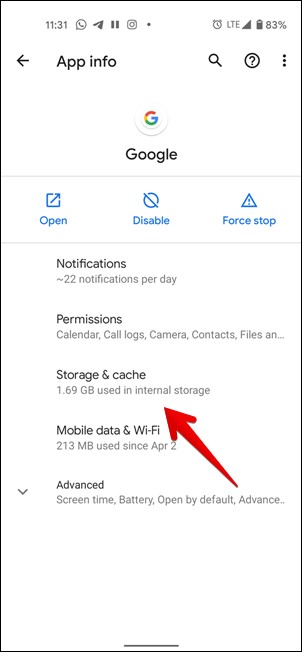
- Open Settings > Apps > Google.
- Tap Storage.
- Tap Clear Cache.
- Tap Clear Data (warning: This logs you out).
For iOS:
- Delete and reinstall the app.
- Sign out and sign back in
Open the app, tap your profile icon, and sign out. Then sign back in with your Google account.
6. Check For Device System Updates
Go to Settings > System > Software Update. Install any available update.
These steps solve problems for about 70% of users. If your app still does not work, continue to deeper solutions.
Advanced Troubleshooting Steps
Some problems need more technical steps. Here is how to fix stubborn issues.
Reinstall The Google App
Sometimes, files become corrupted. Uninstalling and reinstalling the app can fix this.
- Android: Press and hold the app icon, tap Uninstall. Then go to Play Store and reinstall.
- IOS: Press and hold the app, tap Remove App, then reinstall from App Store.
Reset App Preferences (android)
This restores default settings for all apps.
- Go to Settings > Apps > All apps.
- Tap the three-dot menu > Reset app preferences.
- Confirm.
This action does not delete your data, but re-enables disabled apps and resets permissions.
Disable And Re-enable The App
Some Android devices let you disable system apps.
- Go to Settings > Apps > Google.
- Tap Disable, then Enable.
This refreshes the app and can fix hidden bugs.
Check Permissions
Google app needs certain permissions to run.
- Settings > Apps > Google > Permissions.
- Make sure permissions like location, microphone, and storage are enabled.
Clear System Cache (android Only)
Some devices let you clear system cache.
- Turn off your phone.
- Hold Power + Volume Up until you see the recovery menu.
- Use volume buttons to select “Wipe cache partition.”
- Confirm and restart.
Use Safe Mode
Safe Mode runs the phone with only system apps. This helps find conflicts.
- Hold Power button, then tap and hold “Restart” until Safe Mode appears.
- Check if Google app works in Safe Mode.
- If yes, another app is causing the problem.
Check For Known Outages
Sometimes, Google’s servers are down. Check websites like Google Status Dashboard to see if there are known issues.
Google App Not Working: Android Vs Ios
Problems with the Google app look similar on both platforms, but the causes and solutions can be different. Here is a comparison:
| Factor | Android | iOS |
|---|---|---|
| App updates | Frequent, often auto-installed | Less frequent, manual updates |
| Cache clearing | Easy via Settings | Requires uninstall/reinstall |
| System integration | Deep (voice, widgets, search bar) | More limited |
| App disabling | Possible for system apps | Not possible |
| Safe Mode | Available | Not available |
| Permissions | Granular (location, microphone, etc.) | Controlled via iOS privacy settings |
Insight: Android users have more ways to fix problems (cache, Safe Mode, app disabling). iOS users often rely on reinstalling the app and updating the system.
Credit: techwiser.com
Common Error Messages And What They Mean
When the Google app fails, you may see specific error messages. Understanding them can save you time.
1. “google Keeps Stopping”
Usually a bug after an update or corrupted cache. Try clearing cache/data or reinstalling.
2. “no Connection”
Your internet is down, or the app cannot connect to Google servers. Check Wi-Fi/data, airplane mode, or VPN.
3. “something Went Wrong”
Generic error. Often fixed by restarting or updating the app.
4. “can’t Reach Google At The Moment”
Server issue or your network is unstable. Try switching networks.
5. Blank Screen Or App Closes Itself
Often caused by too much cache, low device memory, or a bug. Clear cache and restart device.
Google App Not Working: Impact And Statistics
The Google app is used by over 2 billion people worldwide. According to Statista, about 90% of Android users use Google apps daily. When the app fails, it affects:
- Search access: People cannot find quick answers.
- Voice commands: Smart assistants like Google Assistant depend on the app.
- Personalized content: News, weather, reminders fail to load.
- Business productivity: Workers lose access to quick information.
A 2023 survey found that 65% of users who experienced Google app outages felt “very frustrated” and switched to alternatives like Chrome or third-party search apps.
Preventing Google App Problems
Many issues can be avoided with regular maintenance. Here is how to keep your app running smoothly.
1. Update Regularly
Set your app store to auto-update. Most bugs are fixed in new versions.
2. Clear Cache Monthly
This prevents build-up of corrupted files. For Android, do it in Settings. For iOS, reinstall occasionally.
3. Check Permissions
Apps update and sometimes lose permissions. Review them after each update.
4. Monitor Device Storage
Low storage can cause app crashes. Delete unused files or apps.
5. Avoid Risky Third-party Apps
Apps that clean or boost your device can block Google functions. Use only trusted apps.
6. Restart Your Device Weekly
This resets systems and clears minor bugs.
7. Use Official Versions
Avoid downloading the Google app from unknown sources.
Google App Not Working: Special Cases
Regional Restrictions
In some countries, Google services are restricted or blocked. For example, in China, the app may not work at all. In these cases, you cannot fix the problem unless the restrictions are lifted.
Device-specific Bugs
Certain brands or models have unique issues. For example, Xiaomi and Huawei phones sometimes block Google apps due to custom software. In these cases:
- Check for brand-specific updates
- Visit manufacturer forums for solutions
Accessibility Settings
Sometimes, accessibility options (like screen readers) interfere with Google app functions. If you use these, try disabling them briefly to see if the app works.
Beta Versions
If you are using a beta version of the Google app, you may face more bugs. Switch back to the stable version for better reliability.
Google App Not Working: When To Contact Support
If you have tried all steps and the app still does not work, it may be time to seek help.
- Google Help Center: Search for your issue and follow guides.
- Device manufacturer support: Sometimes, device-specific bugs need special fixes.
- App store support: If the app cannot update or install, contact Play Store or App Store support.
When you contact support, give details:
- Your device model
- Android/iOS version
- Google app version
- Error message (if any)
- Steps you have tried
This speeds up the solution.
Google App Alternatives
If you cannot fix the Google app, you can use alternatives:
- Chrome browser: Still gives access to Google search.
- Third-party search apps: Examples are Bing, DuckDuckGo.
- Voice assistant apps: Like Amazon Alexa or Apple Siri.
However, you lose some personalized features, like news or reminders.
Data Table: Google App Problem Frequency
Here is a comparison of common Google app issues and how often they happen (based on user reports):
| Issue | Frequency (%) | Typical Fix |
|---|---|---|
| App crashes | 40 | Clear cache/data, update app |
| No connection | 25 | Check network, restart device |
| Blank screen | 15 | Restart, reinstall app |
| Voice not working | 10 | Check microphone permissions |
| Account sync errors | 10 | Sign out/in, check sync settings |
Key insight: Most problems are fixed by basic steps like clearing cache or updating. Account sync errors are less common but harder to fix.
Google App Not Working: Hidden Causes Beginners Miss
Many beginners miss these subtle but important causes:
1. Battery Saver Mode
On some devices, battery saver disables background activity. The Google app cannot refresh or load data.
2. Background Data Restrictions
If you restrict background data for the Google app, it cannot fetch updates or notifications.
3. Corrupted Google Account
If your Google account is corrupted or not fully synced, the app fails. Try adding a new Google account to see if the app works.
These are often missed in basic guides. Check battery and data settings if you have unexplained app issues.

Credit: www.youtube.com
Google App Not Working: How Device Age And Storage Affect Performance
Older devices with limited RAM and storage often struggle with the Google app. As the app gets bigger with each update, it needs more resources. If your phone is older than 4 years, you might see:
- Slower app loading
- More frequent crashes
- Delayed voice search
If you cannot upgrade your device, try these tips:
- Remove unused apps to free storage
- Clear cache regularly
- Disable animations in device settings
- Avoid running too many apps at once
Google App Not Working After Update: What To Do
Sometimes, the app stops working after a new update. This is common if the update has bugs or conflicts with your device software.
Steps to fix:
- Clear app cache and data
- Restart your device
- Check for a new update (sometimes Google releases quick fixes)
- If possible, roll back to an earlier app version (Android only, requires APK download from trusted sites)
Warning: Rolling back is not always safe. Only use trusted sources.
Google App Not Working Due To Google Play Services
The Google app relies on Google Play Services for many features. If Play Services is outdated or corrupted, the Google app may fail.
How to fix:
- Go to Settings > Apps > Google Play Services
- Tap Clear Cache
- Tap Update (in Play Store)
- Restart your device
Insight: Many guides skip Play Services. But it is a hidden cause for many Google app issues.
Google App Not Working: Voice Search Problems
Voice search is a key feature. If it stops working:
- Check microphone permissions
- Make sure your device’s microphone works (test with another app)
- Update the Google app
- Try speaking louder or clearer
If voice search still fails, try uninstalling and reinstalling the app.
Google App Not Working: Widget Issues
Many people use the Google app widget on their home screen. Sometimes, the widget does not update or does not respond.
Fixes:
- Remove the widget and add it again
- Restart your device
- Update the app
- Check permissions and background data settings
Google App Not Working: Step-by-step Example
Let’s walk through a real example. Imagine your Google app crashes every time you open it.
- Restart your device
- Update the app in Play Store
- Clear cache and data
- Check permissions
- Reinstall the app
- Check Google Play Services
- If all else fails, contact support
Each step increases your chance of fixing the problem. Most users find the solution by step 4.
Data Table: Google App Fix Success Rates
Here is a table showing which fixes work best, based on user reports:
| Fix | Success Rate (%) | Time Needed |
|---|---|---|
| Restart device | 35 | 1 minute |
| Update app | 20 | 2 minutes |
| Clear cache/data | 25 | 2 minutes |
| Reinstall app | 15 | 3 minutes |
| Contact support | 5 | 1 day+ |
Insight: Restarting and clearing cache/data solve most problems quickly.
Google App Not Working: Security And Privacy
Some users worry that fixing the app may affect privacy. When you clear data or reinstall, your search history may be erased. But your Google account stores most data online. If privacy is a concern:
- Review account settings
- Use the app in Incognito mode
- Delete app data only when needed

Credit: www.youtube.com
Google App Not Working: For Businesses
Businesses depend on the Google app for fast information and productivity. If the app fails:
- Employees lose quick access to search and tools
- Productivity drops
- Workflows slow down
For companies, it is wise to:
- Train staff in basic troubleshooting
- Keep devices updated
- Use alternative search tools during outages
Frequently Asked Questions
Why Does My Google App Keep Crashing?
Crashes often happen due to corrupted cache, outdated app versions, or conflicts with other apps. Restart your device, clear cache/data, and update the app. If these do not work, reinstall the app.
How Do I Fix “google Keeps Stopping” Error?
Start by clearing the app’s cache and data. Update the app if possible. If the error continues, uninstall and reinstall the Google app. Check for device software updates and permissions.
Can Google App Problems Be Caused By Low Storage?
Yes, low storage is a hidden cause. When your device’s storage is almost full, the Google app cannot save new data or run smoothly. Delete unused apps, files, and clear cache to free space.
Is It Safe To Clear Google App Data?
Clearing data removes local files and logs you out of the app, but does not delete your Google account. Your search history and settings are kept online. It is safe, but you will need to sign in again.
What If None Of The Fixes Work?
If all steps fail, check for regional restrictions, device-specific bugs, or server outages. Contact Google Help Center or your device manufacturer for advanced support. Sometimes, waiting for a new app update solves rare issues.
Getting the Google app not working problem fixed is easier if you follow step-by-step solutions. Most issues are simple, but some need deeper troubleshooting. Keep your app and device updated, and check for subtle causes like battery saver or background data limits. If needed, use alternative search tools or contact support. With these tips, you can get back to searching, reading news, and using voice commands without frustration.