When you use a smartphone, computer, or online account, you often hear the word “sync.” But what happens when things do not sync? Many people see error messages like “Not syncing” or “Sync failed,” and feel unsure about what it means. If you want to keep your information safe, accessible, and up-to-date, it’s important to understand what not syncing really means and how it affects your digital life.
This article explains not syncing in simple terms. You’ll learn what it looks like, why it matters, and how to fix or prevent sync problems. Whether you use Google Drive, iCloud, Microsoft Outlook, or other apps, this guide will help you avoid confusion and common mistakes.
What Does “syncing” Mean?
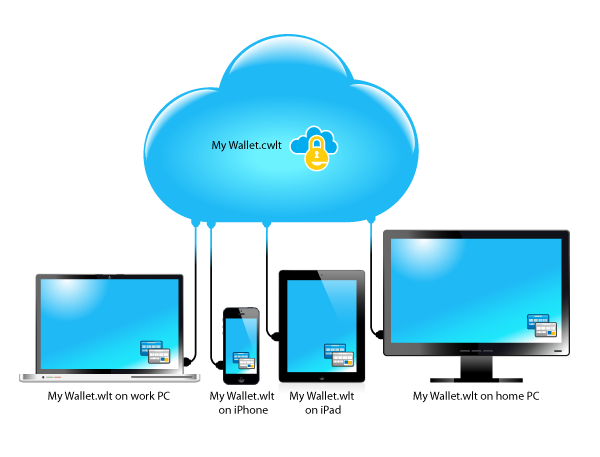
Before you can understand not syncing, you need to know what syncing is. In technology, “sync” is short for synchronize. It means keeping the same data in different places so everything matches.
For example:
- When your phone and your laptop both have the same photos, they are synced.
- If you add an event to your calendar on your computer, and it shows up on your phone, that’s syncing.
- When you write a note in a cloud app like Evernote, and it appears everywhere you log in, that’s syncing at work.
Syncing makes your life easier because you don’t need to copy files or remember what changed. It’s automatic and usually happens in the background.
What Does “not Syncing” Mean?
Not syncing means data is not being updated, matched, or shared between devices or accounts as it should. Sometimes, changes you make on one device don’t appear on another. Other times, new files or updates are missing, delayed, or lost.
Not syncing can happen for many reasons:
- No internet connection
- Errors in your account or app
- Outdated software
- Conflicts between versions of files
- Security settings or restrictions
When data is not synced, you might see old information, lose new files, or find that devices are out of date. This can create confusion, mistakes, and sometimes even security risks.
Common Signs And Symptoms Of Not Syncing
How can you tell if your device or app is not syncing? Here are some clear signs:
- Missing Data: Files, contacts, or events appear on one device but not another.
- Sync Errors: Messages like “Sync failed,” “Not syncing,” or error codes appear.
- Old Information: You see outdated emails, messages, or calendar entries.
- Manual Update Needed: You have to refresh or upload files yourself.
- Duplicates or Conflicts: Two versions of the same file appear, often with different changes.
Understanding these symptoms helps you spot sync problems early.
Real-life Examples Of Not Syncing
To make things clearer, let’s look at some real-world situations:
- You add a contact on your phone, but it never appears on your email account.
- You save a file in Google Drive on your computer, but it doesn’t show up in the Drive app on your phone.
- You reply to an email in Microsoft Outlook on your laptop, but the same email still looks “unread” on your phone.
- You take a photo with your iPhone, but it doesn’t show up in your iCloud Photos on your tablet.
All these are examples of not syncing. They can cause small problems (like missing photos) or big issues (like lost work).
Why Not Syncing Happens: Main Causes
Understanding why not syncing happens helps you avoid or fix it. Here are the main reasons:
1. Internet Problems
Syncing needs a stable internet connection. If your device is offline, or the connection is weak, syncing may stop or fail.
2. Account Issues
If you’re not signed in, or there’s a problem with your password or permissions, syncing can’t happen. Sometimes, you might be logged into different accounts on different devices.
3. Software Bugs Or Outdated Apps
Old or buggy apps may not sync correctly. Updates often fix these problems, but if you don’t update, syncing can break.
4. Storage Limits
If you run out of cloud storage (like Google Drive’s 15 GB free limit), new files won’t sync until you clear space or pay for more.
5. Conflicting Changes
If you edit the same file on two devices at the same time, the app may not know which version is “right. ” This can stop syncing or create duplicate files.
6. Security Settings
Some apps or devices block syncing for privacy or security. For example, a company phone might block syncing certain data to protect sensitive information.
7. App-specific Settings
Many apps have their own sync settings. Turning off sync by mistake, or changing the sync frequency, can cause problems.
How Not Syncing Affects Daily Life
People often underestimate the impact of not syncing. But it can cause:
- Missed appointments: Calendar events don’t update, so you forget meetings.
- Lost work: Files or edits are missing, leading to wasted time.
- Confusion: You don’t know which device has the latest information.
- Data loss: Sometimes, unsynced data is lost if a device is lost, stolen, or broken.
- Security risks: Outdated information can create mistakes, or leave old passwords and data exposed.
A non-obvious risk: If you rely on a cloud backup but syncing stops, you may lose your only copy of important files if your device fails.
The Difference Between Not Syncing And Manual Update
Some apps let you sync data manually. This means you have to press a button to update files or information. This is different from not syncing. When an app is not syncing, even manual attempts might not work.
Here’s a quick comparison:
| Feature | Manual Update | Not Syncing |
|---|---|---|
| How updates happen | User triggers sync | Sync does not happen at all |
| Data consistency | Up-to-date after manual sync | Data remains outdated |
| Error messages | Usually none | May show errors |
| User control | More control | Little or no control |
Manual update is sometimes safer than relying only on automatic sync, especially if you often work offline.
How Different Services Handle Not Syncing
Every app or service handles not syncing in its own way. Here are some examples:
Google Drive
Google Drive usually shows a small “cloud with a line” icon when it’s not syncing. You might also see “Unable to sync” messages. Google gives detailed error codes you can look up for solutions.
Icloud
ICloud may show “Waiting to sync” or “Not syncing” under files or in the settings. Sometimes, photos or notes are out of date, or you see the wrong number of files.
Microsoft Outlook
Outlook might say “Not connected” or “Sync issues. ” Emails can appear only on one device, or changes take a long time to show up.
Dropbox
Dropbox uses colored icons to show sync status. A red “X” means a file is not syncing. You can click for details about the error.
Here’s a simple overview:
| Service | Sync Status Icon | Common Error Message |
|---|---|---|
| Google Drive | Cloud with slash | Unable to sync |
| iCloud | Cloud with dotted outline | Waiting to sync |
| Outlook | Disconnected plug | Sync issues |
| Dropbox | Red X | File can’t be synced |
Understanding these icons and messages can help you react quickly when you see a problem.

Credit: help.printful.com
How To Troubleshoot Not Syncing Problems
If you notice not syncing on your device or app, here are steps to solve it:
- Check Internet Connection: Make sure you’re online and the connection is strong.
- Restart the App or Device: Sometimes, simply closing and reopening the app or restarting your device fixes the issue.
- Sign In Again: Log out and back in to your account. This refreshes permissions and connections.
- Update the App: Install the latest version. Many sync bugs are fixed in updates.
- Check Storage Space: Make sure you have enough cloud storage. Delete old files if needed.
- Review Sync Settings: Go to the app’s settings and make sure sync is turned on.
- Resolve Conflicts: If you see duplicate files or conflict messages, choose which version to keep.
- Contact Support: If you tried everything and nothing works, contact the app’s support for help.
A practical tip: Sometimes, antivirus or firewall settings can block syncing. Try turning them off briefly to test if that’s the cause.
Preventing Not Syncing In The Future
It’s better to prevent sync problems than to fix them later. Here’s how:
- Keep apps updated: Enable automatic updates if possible.
- Use strong, stable Wi-Fi: Avoid syncing on weak or public networks.
- Sign in with the same account everywhere: Double-check which account you’re using.
- Check sync settings after updates: Sometimes, updates reset settings.
- Back up important files manually: Don’t rely only on sync for your most important data.
- Regularly review your cloud storage: Delete files you don’t need, and check storage limits.
A non-obvious insight: If you use multiple cloud services (like Google Drive and Dropbox), sync problems can happen if you move or copy files between them. Always let one service finish syncing before starting the other.

Credit: hackmd.io
Not Syncing Vs. Backup: What’s The Difference?
People often confuse syncing with backup, but they are not the same.
- Syncing: Keeps the same data on multiple devices, updating as you make changes.
- Backup: Makes a separate copy of your data in case you lose the original.
If your files are not syncing, your backup may also be out of date. For true safety, use both.
Here’s a quick comparison:
| Feature | Syncing | Backup |
|---|---|---|
| Purpose | Match data across devices | Save a copy in case of loss |
| Data version | Latest, always updated | Snapshot at backup time |
| Automatic? | Often automatic | Manual or scheduled |
| If not syncing? | Data may be missing | Backup may be outdated |
If you want more details on this difference, the Wikipedia article on synchronization is a helpful resource.
Syncing And Privacy: What To Know
Syncing sends your data to the cloud or across devices. If you are not syncing, your data stays on one device, which can be safer from hacking but riskier if you lose the device. Some users turn off syncing to protect privacy, especially with sensitive data. But the risk is losing data if something happens to your device.
To stay safe:
- Use strong passwords on all accounts.
- Turn on two-factor authentication where possible.
- Know what data is being synced, and with whom.
- Only sync what you need. For example, turn off photo syncing if you don’t want your pictures in the cloud.
A common mistake: People think turning off sync protects all privacy. In fact, some apps may still upload data for other reasons unless you check all settings.
Syncing In Teams And Organizations
For businesses, not syncing can cause bigger problems. Teams may work on old documents, miss customer requests, or even leak confidential information if data is out of date. Many organizations use tools like Microsoft OneDrive or Google Workspace to keep everyone’s data in sync.
Best practices for teams:
- Train everyone to check sync status.
- Set rules for naming files to avoid confusion.
- Make sure everyone uses the same accounts and apps.
- Have an IT person review sync logs and errors regularly.
A practical tip for managers: Schedule a regular “sync check” where everyone makes sure their files and emails are up to date.
Common Myths About Not Syncing
There are some myths about not syncing that can lead to trouble:
- Myth: “If my files aren’t syncing, they’re safe on my device.”
Reality: Devices can fail or be lost, so unsynced data isn’t always safe.
- Myth: “Turning off sync saves battery and data.”
Reality: Turning off sync can sometimes cause apps to use more resources as they try again and again to sync.
- Myth: “If I uninstall and reinstall, everything will sync again.”
Reality: Unsynced changes may be lost when you uninstall the app.
Knowing the truth helps you make better choices about your data.
Frequently Asked Questions
What Does “not Syncing” Mean On My Phone?
Not syncing on your phone means changes or new data (like photos, contacts, or messages) are not being updated between your phone and other devices or the cloud. You may have missing or outdated information because the sync process is not working.
Why Are My Emails Not Syncing Across Devices?
This usually happens due to internet problems, being signed into different accounts, or issues with your email app’s settings. Make sure you’re online, using the same account, and that sync is enabled in the app’s settings.
Will I Lose Data If My Files Are Not Syncing?
If files are not syncing, changes or new files on one device won’t appear on others. If the device is lost, stolen, or breaks before syncing happens, you may lose that data. Always back up important files manually if sync is not working.
How Can I Tell If An App Is Not Syncing?
Look for warning messages, error icons, or missing updates. Some apps show a “sync failed” message or use a special icon (like a cloud with a slash) to show sync problems. If you notice old information or missing data, check the app’s sync status.
Is It Safe To Use Apps That Are Not Syncing?
It’s usually safe, but you risk missing updates, losing data, or making mistakes if information is outdated. For important work, try to fix sync issues quickly, or use manual backups until sync works again.
Staying aware of not syncing helps you avoid surprises and protects your valuable data. By learning to spot sync problems, understanding their causes, and following practical tips, you can keep your digital life running smoothly and stay in control—no matter how many devices or apps you use.
Credit: blog.iliumsoft.com