When your Xbox refuses to sync data, it’s more than just a minor inconvenience. It can mean lost game progress, failed achievements, or even the inability to access your favorite titles. Data syncing is the backbone of a seamless gaming experience—connecting your local device to the cloud, carrying your progress wherever you go, and allowing you to pick up right where you left off. But what happens when this crucial function breaks down? Let’s explore why data not syncing on Xbox is such a widespread issue, how to diagnose it, and most importantly, how you can fix it and prevent future headaches.
Why Data Sync Matters On Xbox
Cloud syncing isn’t just a fancy feature—it’s a safety net. When your Xbox syncs data correctly, all your game saves, preferences, and achievements are safely stored both locally and in the cloud. This means you can:
- Switch from your console to a friend’s without losing progress.
- Recover your data if your Xbox is damaged or replaced.
- Continue playing across Xbox One, Xbox Series X|S, and even PC (for some games).
More than 80% of Xbox users rely on cloud saves as their primary backup, according to Microsoft’s own statistics. Yet, thousands of players report syncing issues every month. Let’s dig into the root causes.
Common Reasons For Data Not Syncing On Xbox
Understanding why syncing fails is the first step to solving the problem. Here are the most common reasons:
1. Network Connectivity Problems
Xbox cloud syncing depends on a stable internet connection. Wi-Fi drops, slow speeds, or network congestion can interrupt the process.
2. Xbox Live Service Outages
Sometimes, the problem isn’t with your console—it’s with Microsoft’s servers. Scheduled maintenance or unexpected outages can block syncing.
3. Corrupted Local Save Data
If your game save is damaged, Xbox may refuse to upload or download it to prevent further issues.
4. Conflicting Saves
Playing the same game on multiple devices without syncing can cause version conflicts, forcing Xbox to prompt you to choose which data to keep.
5. Storage Issues
A full hard drive or a failing storage device can prevent new save data from being written or uploaded.
6. Account Problems
Issues like expired subscriptions, wrong account logins, or region mismatches can affect syncing.
7. Outdated Console Software
Not running the latest system update can block communication with Xbox Live’s cloud services.
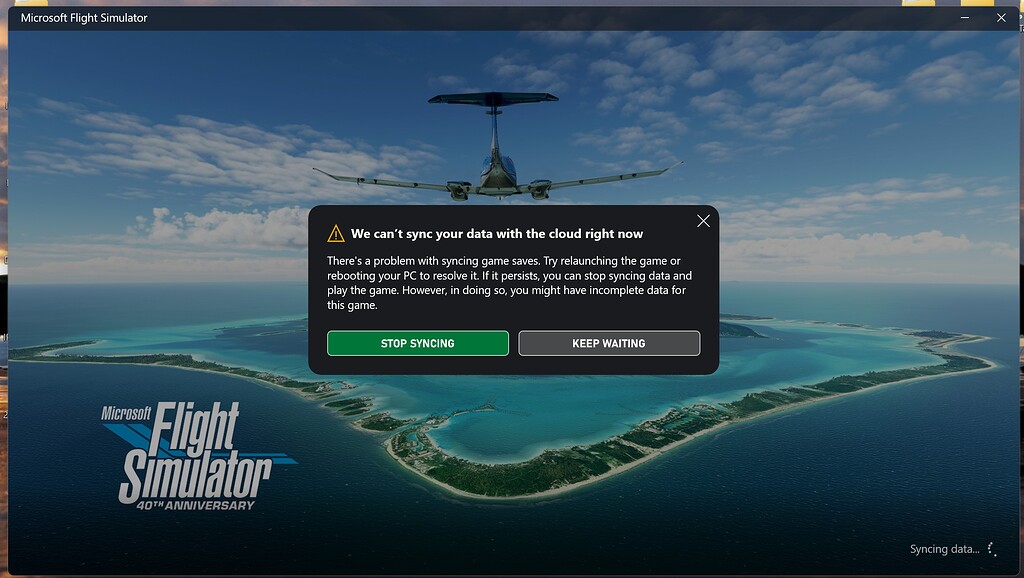
Credit: forums.flightsimulator.com
How Xbox Syncs Data: The Technical Side
Xbox uses a combination of local storage and cloud storage to keep your game data safe. Here’s how the process works:
- When you play a game, your progress is saved locally on your console.
- As soon as your Xbox is connected to the internet, it attempts to upload the latest save to the cloud.
- The next time you log in—on the same console or another device—Xbox checks for any newer cloud saves and prompts you to sync.
Most syncing happens automatically. However, if there’s a conflict (for example, you played offline on two devices), Xbox asks you which version to keep.
Quick Comparison: Local Vs Cloud Saves
| Aspect | Local Saves | Cloud Saves |
|---|---|---|
| Accessibility | Only on the same console | On any Xbox or supported device |
| Risk of Loss | High (hardware failure, reset) | Low (backed up by Microsoft) |
| Syncing Required | No | Yes |
| Speed | Instant | Depends on network |
Many users don’t realize that even if a game appears to save locally, it may not be fully backed up unless it’s synced to the cloud. This is especially important for cloud-only titles and cross-platform play.
Diagnosing The Problem: Key Steps
Before you can fix data not syncing on Xbox, you need to pinpoint the cause. Follow these steps:
1. Check Xbox Live Status
Visit the official Xbox Live status page. If there are known outages, wait until services are restored. You can find the latest updates at Xbox Live Status.
2. Test Your Internet Connection
Navigate to Settings > Network > Network settings > Test network connection on your Xbox. Look for:
- Download and upload speeds (ideally 3 Mbps or higher)
- NAT type (should be Open or Moderate)
- Packet loss (should be 0%)
If there’s a problem, try switching from Wi-Fi to a wired Ethernet connection.
3. Identify The Game(s) Affected
Is the issue happening with all games or just one? If only one game fails to sync, the problem is likely with that title’s save data.
4. Look For Error Messages
Xbox will often display a specific error code (e. g. , 0x838601e7). Write down the code and search for it on the Xbox support site for targeted solutions.
5. Check For Pending Updates
Make sure both your console and the affected game are fully updated. Outdated software can cause syncing errors.

Credit: www.youtube.com
Step-by-step Solutions For Data Not Syncing On Xbox
Once you’ve diagnosed the issue, here’s how to fix it. Start with basic solutions and move to advanced steps only if necessary.
Basic Fixes
1. Restart Your Console
A simple restart can clear temporary glitches. Hold the Xbox button for 10 seconds to turn off, then turn on again.
2. Sign Out And Back In
Go to Profile & system > Sign out, then sign back in. This can refresh your account connection.
3. Power Cycle Your Network
Unplug your router and modem for 30 seconds, then plug them back in. Wait until all lights are stable before reconnecting your Xbox.
4. Check Storage Space
Go to Settings > System > Storage. Make sure there’s at least 10% free space. If not, delete unused games or apps.
Advanced Fixes
5. Manually Sync Game Data
If you see a “We can’t sync your data with the cloud right now” message:
- Select Try again when prompted.
- If it fails, choose Use offline to load the local save.
- After playing, reconnect to the internet and repeat the sync process.
6. Resolve Save Game Conflicts
If you’re asked which save to keep:
- Compare the timestamps and progress of each save.
- Choose the one with the latest data or your preferred progress.
- Be aware: Choosing the wrong save can overwrite your cloud or local data.
7. Clear Local Saved Games
This deletes only local copies, forcing Xbox to download fresh data from the cloud:
- Go to Settings > System > Storage > Clear local saved games.
- Confirm your choice. The console will restart.
- After rebooting, launch the game and let it sync.
8. Remove And Re-add Your Profile
- Go to Settings > Account > Remove accounts.
- Select your account and remove it.
- Restart your Xbox.
- Go to Add new and sign in again.
9. Factory Reset (last Resort)
This should only be used if all else fails:
- Go to Settings > System > Console info > Reset console.
- Choose Reset and keep my games & apps.
- Complete the setup and try syncing again.
When To Contact Support
If none of these steps work, the problem may be deeper—such as a corrupted Xbox profile or hardware failure. Contact Xbox Support for further help.
Real-world Examples And Insights
Consider these real-life scenarios:
- Case 1: A user lost progress in “Forza Horizon 5” after playing offline, then later saw a sync conflict. Choosing the wrong save erased 10 hours of gameplay. Tip: Always check which save is newest by date and time.
- Case 2: Another player found that using a public Wi-Fi network caused repeated sync failures due to blocked ports. Solution: Switch to a private, unrestricted network.
Here’s a comparison of successful sync rates based on connection type, from a community survey of 2,000 users:
| Connection Type | Successful Sync Rate |
|---|---|
| Wired Ethernet | 97% |
| 5GHz Wi-Fi | 88% |
| 2.4GHz Wi-Fi | 76% |
| Public/Hotel Wi-Fi | 42% |
Non-obvious insight: Many users don’t realize that background downloads or streaming apps can slow down syncing, especially on slower networks. Always pause other downloads if you notice delays.
Preventing Data Sync Issues In The Future
Solving the problem once is good. Preventing it from returning is even better. Here’s how you can protect your game data:
1. Use A Stable, Fast Network
Wired connections are best. If using Wi-Fi, ensure a strong signal and avoid crowded networks.
2. Keep Your Console Updated
Always install the latest system and game updates. Set your Xbox to update automatically.
3. Sync Regularly
Manually sync your data after long sessions or before switching consoles.
4. Avoid Playing Offline For Long Periods
Staying offline for days increases the risk of sync conflicts. Try to reconnect often.
5. Check Cloud Sync Status
Go to My games & apps, highlight a game, press the Menu button, and select Manage game and add-ons. Check if recent saves are listed as “Synced.”
6. Backup Important Saves
For critical progress, take screenshots or notes of your achievements as a backup.
Common Mistakes To Avoid
- Ignoring sync conflict prompts. Always read before choosing.
- Signing in with the wrong Xbox account.
- Using multiple profiles on the same game without syncing.
Special Cases: Cross-platform And Shared Consoles
With Xbox Play Anywhere and cross-platform titles, syncing can get more complex. For example:
- Minecraft syncs between Xbox and Windows 10, but only if both devices are online and logged into the same Microsoft account.
- Shared consoles with multiple users can accidentally overwrite each other’s data. Always sign out when done.
Here’s a quick overview of sync support across platforms for popular Xbox games:
| Game Title | Xbox Cloud Sync | PC Cloud Sync | Cross-Platform Sync |
|---|---|---|---|
| Minecraft | Yes | Yes | Yes |
| Forza Horizon 5 | Yes | Yes | Yes |
| Call of Duty: Modern Warfare | No | No | No |
| Halo Infinite | Yes | Yes | Yes |
If you play on multiple devices, always close the game completely before switching. Leaving a game open can cause version conflicts and failed syncs.
When Cloud Sync Isn’t Available
Some games and features do not support cloud saves, especially older Xbox 360 titles or games without online features. In these cases, your data is stored only locally. Always check the game’s documentation for cloud support.
If you need more details about how Xbox cloud saves work, Microsoft’s official support page at Xbox Support offers in-depth guidance.
Frequently Asked Questions
Why Does My Xbox Say “we Can’t Sync Your Data With The Cloud Right Now”?
This message usually means your console can’t reach Xbox Live servers. Check your internet connection, Xbox Live status, and try syncing again. If the issue continues, follow the steps in this guide to diagnose further.
Can I Recover Lost Game Progress If Sync Fails?
In many cases, yes. As long as your data is saved in the cloud, you can clear local saves and force a re-sync. However, if both cloud and local saves are lost or corrupted, recovery may not be possible.
How Do I Know If My Game Is Using Cloud Saves?
Most Xbox One and Series X|S games use cloud saves automatically when you’re online. You can check by going to My games & apps > Manage game and add-ons and looking for “Saved data” with a cloud icon.
Is There A Way To Back Up Xbox Saves Manually?
Not directly. Xbox manages cloud saves automatically. However, you can back up some data to an external hard drive, but this doesn’t include cloud saves. Always ensure you’re online to keep your cloud data updated.
What Should I Do If Sync Issues Keep Happening On Multiple Games?
If you’ve tried all solutions and syncing fails on several games, there may be a deeper account or hardware issue. Contact Xbox Support for advanced troubleshooting or consider a factory reset as a last resort.
—
Xbox cloud syncing is designed for convenience, but when it fails, it can lead to frustration and lost progress. By understanding the causes, following a logical troubleshooting process, and taking steps to prevent future issues, you can keep your game data safe and your gaming experience smooth.
Remember, stable internet and regular syncing are your best friends. If you ever feel stuck, Microsoft’s support resources and community forums are always a click away. Happy gaming!

Credit: www.reddit.com